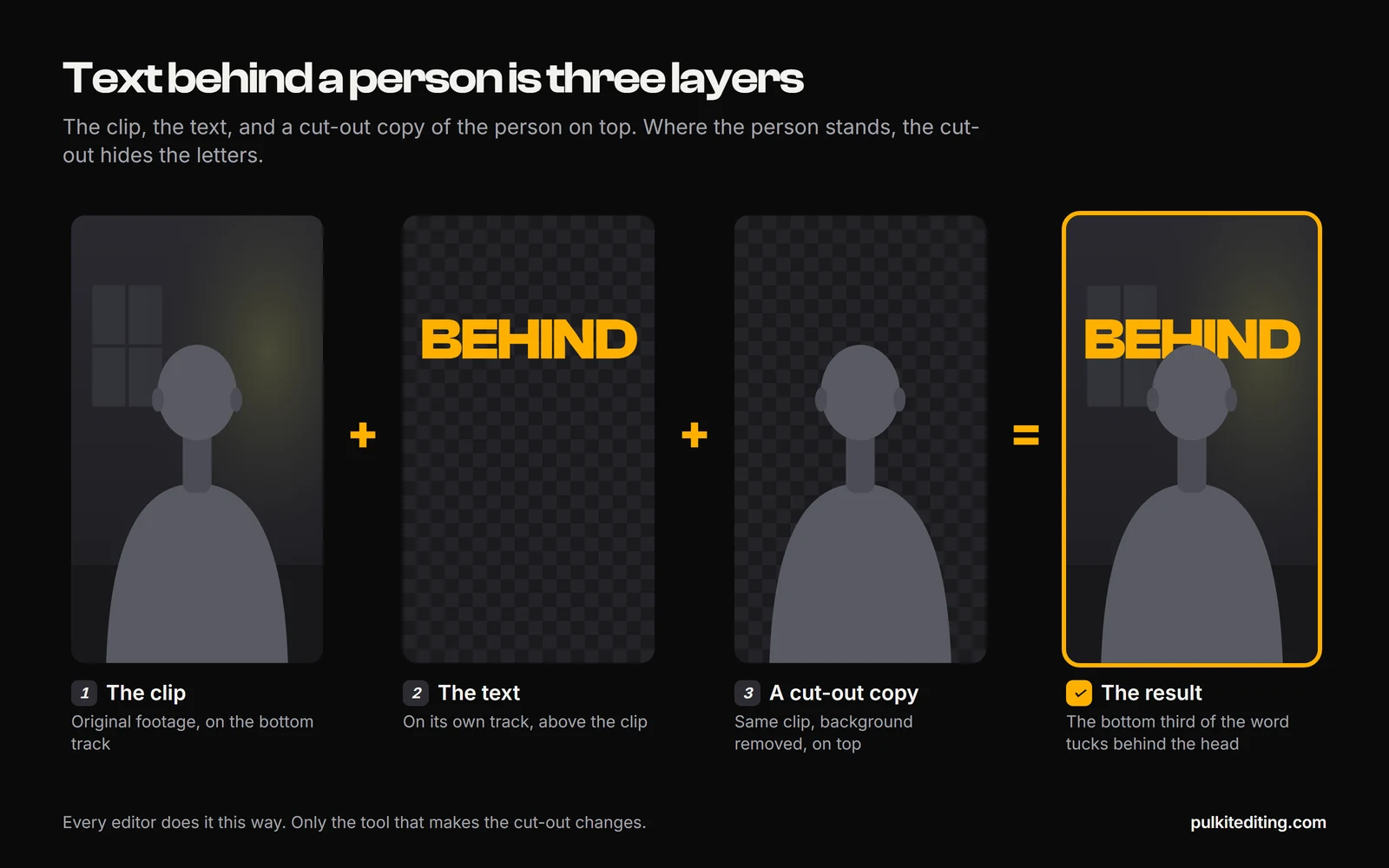
In short: stack three layers. The clip goes at the bottom, the text in the middle, and a cut-out copy of the person on top, lined up frame for frame. The cut-out hides the text wherever the person stands in front of it. Every editor does it this way. What changes is the tool that makes the cut-out: Object Mask in Premiere 26, Roto Brush or Object Matte in After Effects, Magic Mask in DaVinci Resolve Studio, Cutouts in Edits, AI Cutout in VN, and the background remover on Canva's paid plans. Tuck only the bottom third of the word behind the head, so it still reads.
How the effect works
The text never goes behind anything. It sits on top of the original clip, and a second copy of the clip, with everything except the person removed, sits on top of the text. Where the person is, the top copy covers the letters; everywhere else you see the text over the background.
So the whole job is making a clean cut-out of the person on every frame. The better the cut-out, the more the effect looks shot rather than edited.
In Premiere Pro (version 26 and later)
Premiere 26 added an AI Object Mask that selects and tracks a person in one click, and Adobe published a text-behind tutorial built on it in June 2026. My steps:
- Put the clip on V1 and your text on V2. Hold Alt and drag the clip up to V3, so an exact copy sits above the text.
- Select the V3 copy and pick the Object Mask tool. Go to a frame where the person is clearly visible, hover over them, and click. Use the + and − buttons (or hold Alt) to add a missed hand or remove a bit of background.
- Track the mask forward and backward through the clip.
- Apply the mask to the copy's opacity, so only the person shows on V3. The text on V2 now shows everywhere except where the person stands.
- For hair, switch the mask to Smooth mode. If a bright outline shows around the person, pull Mask Expansion slightly below zero.
- Keep the folder called "[project name] Masks" next to your project file. Premiere stores the mask data there, and the masks go offline without it.
Older versions of Premiere, like the 2023 one, have no Object Mask. Right-click the clip, choose Replace With After Effects Composition, make the cut-out there, and it comes back into Premiere as a live layer.
In After Effects
- Duplicate the footage layer (Ctrl + D) and put your text layer between the two copies.
- Double-click the top copy to open it in the Layer panel.
- In the newest After Effects, use the Object Matte tool and click the person. In earlier versions, use the Roto Brush (Alt + W): on a clear frame, paint over the person in green, then hold Alt and paint red over anything that shouldn't be part of them.
- Press the spacebar to play forward and let the selection spread through the clip. Where it slips, stop and paint a correction on that frame.
- Refine the edge for hair, then Freeze the result so After Effects caches it.
- Back in the composition, the top copy shows only the person, with the text behind.
Motion blur is what breaks cut-outs most often. If you are filming for this effect, use a faster shutter than usual (1/100 or faster) so fast hands stay sharp.
In DaVinci Resolve
Magic Mask, the tool that selects a person automatically, is only in DaVinci Resolve Studio, the paid version (₹25,980, a one-time purchase, on Blackmagic's Indian store in November 2026). With Studio:
- Put the clip on V1, a Text+ title on V2, and a copy of the clip on V3.
- On the Color page, select the V3 copy, add a Magic Mask, choose Person, draw a stroke on them and track it through the clip.
- Right-click the node graph, choose Add Alpha Output, and connect the mask node's alpha to it.
- Go back to the Edit page. V3 now shows only the person, so the text on V2 sits behind them.
In the free version, you can draw a polygon mask in Fusion and track it, which is slow on a moving person, or make the cut-out in another app that exports video with transparency and bring that in as the top layer.
On your phone: Edits, VN and Canva
- Edits: add the clip and the text, then use Cutouts on the person. Recent versions let you place text and stickers behind a cut-out. If yours keeps the cut-out above everything, update the app.
- VN: put the clip on the main track, add your text, then add the same clip again as an overlay and run AI Cutout on that overlay. Line both copies up to the same frame and make sure the text sits below the overlay.
- Canva: the video background remover is on paid plans, and works on videos whose original length is under 10 minutes (if you trimmed the clip inside Canva, download it and upload it again first). Add the video twice, remove the background from the top copy, and use Position > Layers to put the text between the two.
- CapCut: blocked in India since July 2020, so I don't use it. Elsewhere, the method is the same: an overlay copy with Remove background, and the text underneath.
The rules that make it look right
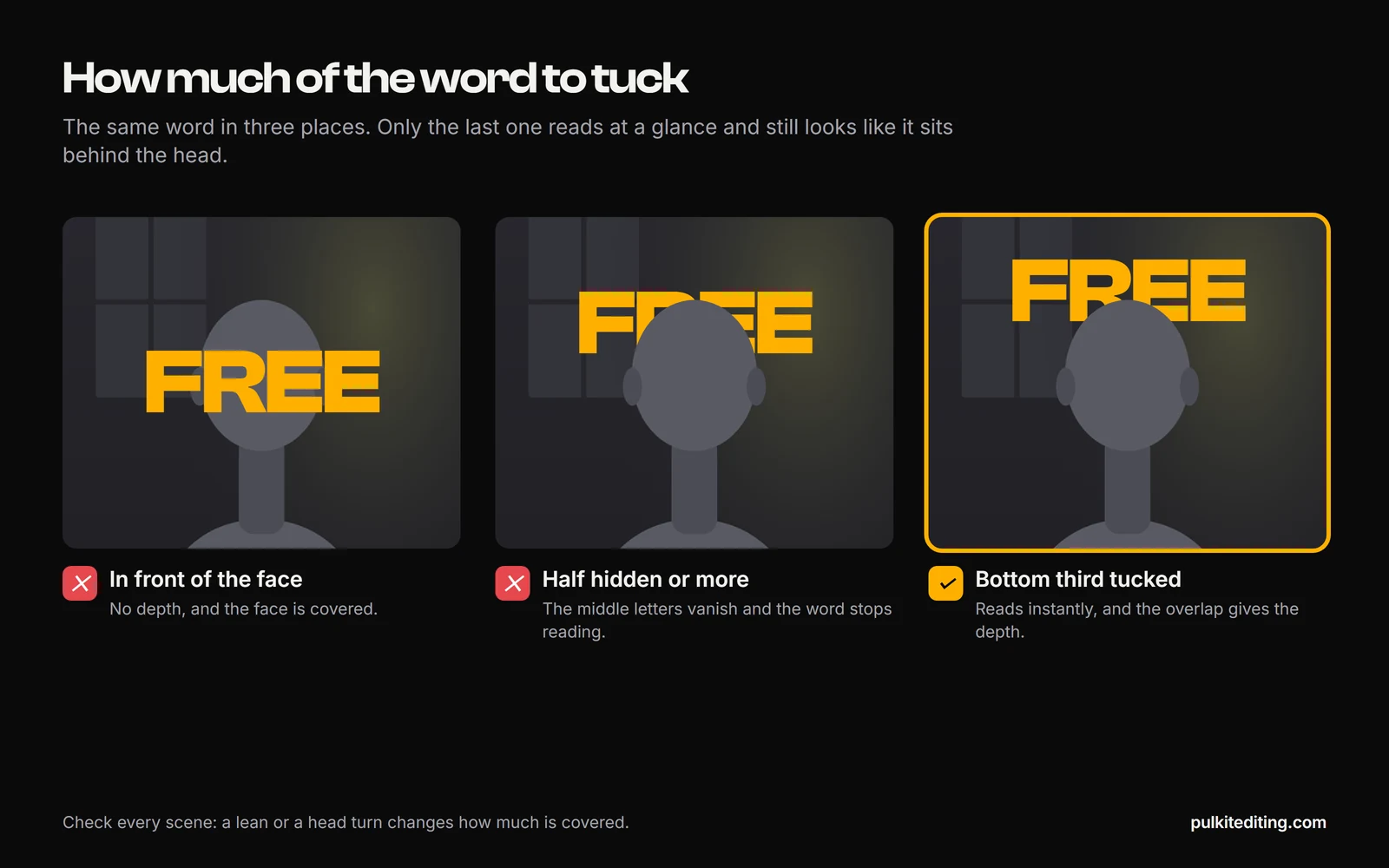
- Tuck the bottom third. A word with half its height hidden looks like an accident. When only the bottom third is covered, it still reads at a glance, and the overlap is what makes it look deep. I check this on every scene, because a lean or a head turn changes how much is covered.
- Use big, heavy, short words. One or two words, in the boldest weight of a plain font, wide enough that the person covers only a small part of them. Thin letters disappear behind hair.
- Keep it off the face. Put the word above the eyes, where the top of the head can overlap its bottom edge, or behind the shoulders. Never let a letter cross the face.
- Check the widest gesture. Scrub to the frames where the hands move fastest and widest. That is where masks drop fingers or leave patches of background, so fix those frames first.
- Hide edge flicker with a soft copy. Put a blurred duplicate of the cut-out (a blur of about 7 pixels at around 90% opacity) between the text and the sharp cut-out. It fills small gaps in the mask without reading as a glow. Keep it as a live layer, so changing the blur takes seconds instead of a re-render.
- Move the word with the camera. If you push in on the person, scale the word with the same move. A word that stays still while the person grows looks pasted on.
It also helps to make the person a little brighter than the background. When the subject pops, the separation between them and the word reads instantly.
Examples from reels I edited
ILLEGAL behind the presenter in a PrepGenix reel, WON behind a collector in a Hot Wheels reel, and the headline and a red sun tucked behind the head in another.
When to use it
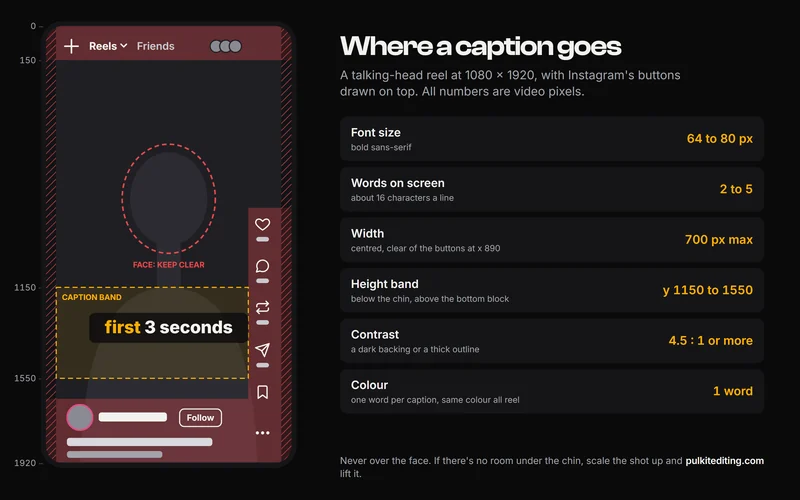
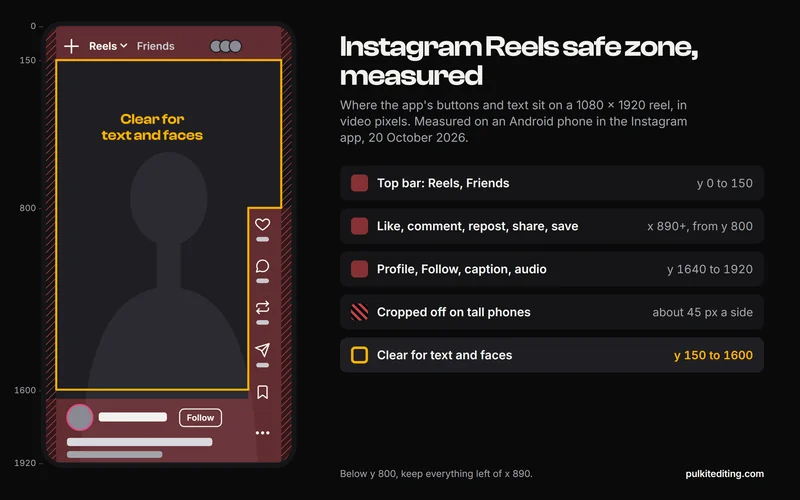
Use one word per scene that sums up the line: the topic, the number, the verdict. Under every sentence it starts to fight the captions. I keep captions in front of the person, low in the frame, and the behind-word high, where the top of the head can tuck into it. Where each of those can sit without hitting Instagram's buttons is in the measured Reels safe zone, and the caption side is in captions for reels.
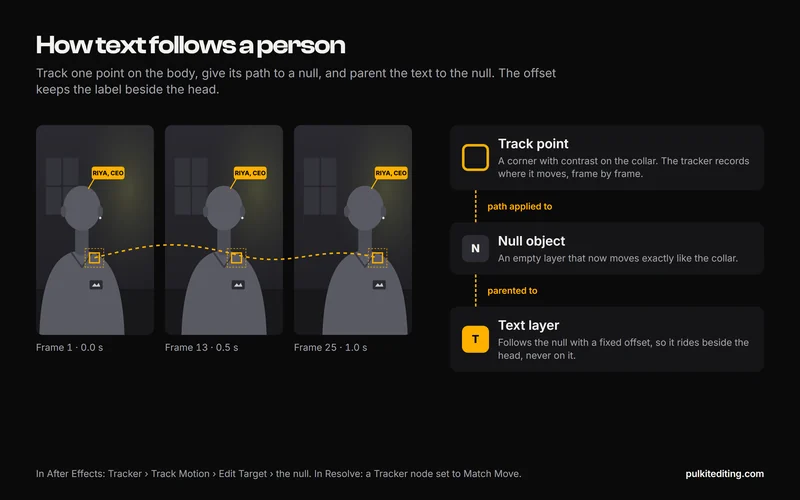
If the word should also travel with the person as they move, that is motion tracking, which I cover in how to make text follow a person.
Questions people ask
What is the text behind a person effect called?
Editors call it text behind subject, depth text or occlusion. Technically it is a cut-out (a mask or rotoscope) of the person placed on top of the text, with the original clip underneath.
Can I put text behind a person for free?
Yes. Edits and VN do it on a phone for free, and Premiere 26's Object Mask and After Effects' Roto Brush do it if you already have Adobe's apps. In DaVinci Resolve, the automatic Magic Mask needs the paid Studio version; the free version needs a hand-drawn mask.
Do I need a green screen for text behind a person?
No. AI masking works on normal footage. A plain background, good light and little motion blur make the cut-out cleaner and save you fixing frames by hand.
Why does the text show through the person's hair?
The mask edge is too hard or too loose. Use Smooth mode in Premiere or refine the edge in After Effects, pull the mask in slightly, and put a softly blurred copy of the cut-out between the text and the sharp cut-out to fill the gaps.
How much of the word should be hidden behind the head?
About the bottom third. With half the word hidden it stops reading at a glance; with the bottom third tucked it still reads, and the overlap gives the depth.
Sources
- Object masking in Premiere, Adobe Help Center
- Put text behind your subject with AI-powered Object Mask, Adobe Learn, June 2026
- Roto Brush and Refine Matte in After Effects, Adobe Help Center
- Separate foreground from background using Magic Mask 2 in DaVinci Resolve 20, Larry Jordan
- DaVinci Resolve Studio, Blackmagic Design India
- Instagram Edits app brings AI-powered cutouts to mobile videos, Net Influencer
- Remove photo and video backgrounds, Canva Help Center
- Xiaomi Browser, ByteDance’s CapCut among 47 Chinese apps banned by India, Inc42, July 2020