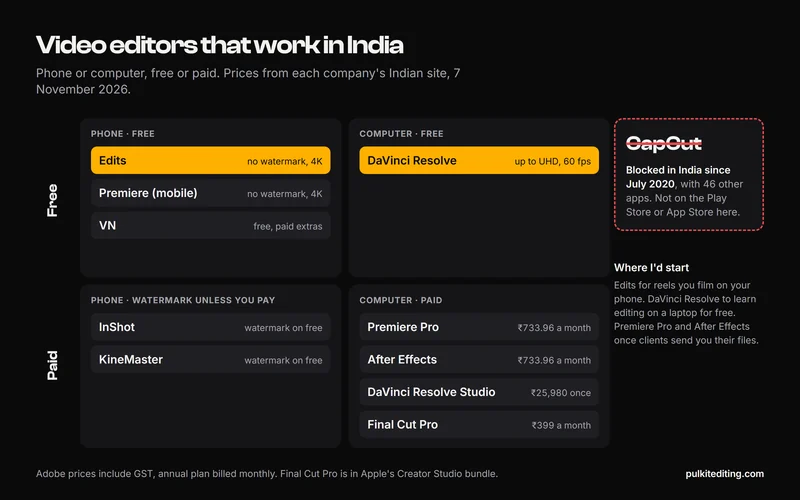
In short: you track one point on the person, then attach the text to that point. After Effects does this properly (Track Motion onto a null object, then parent the text to the null), and so does the point tracker in DaVinci Resolve's free Fusion page. Premiere's Object Mask tracks masks, not titles, so in Premiere you either keyframe the text by hand or send the clip to After Effects. On a phone, CapCut has a tracking button but is blocked in India; in Edits and VN I keyframe the text's position myself. The track only holds if the point you pick has contrast, corners and no motion blur.
How motion tracking works
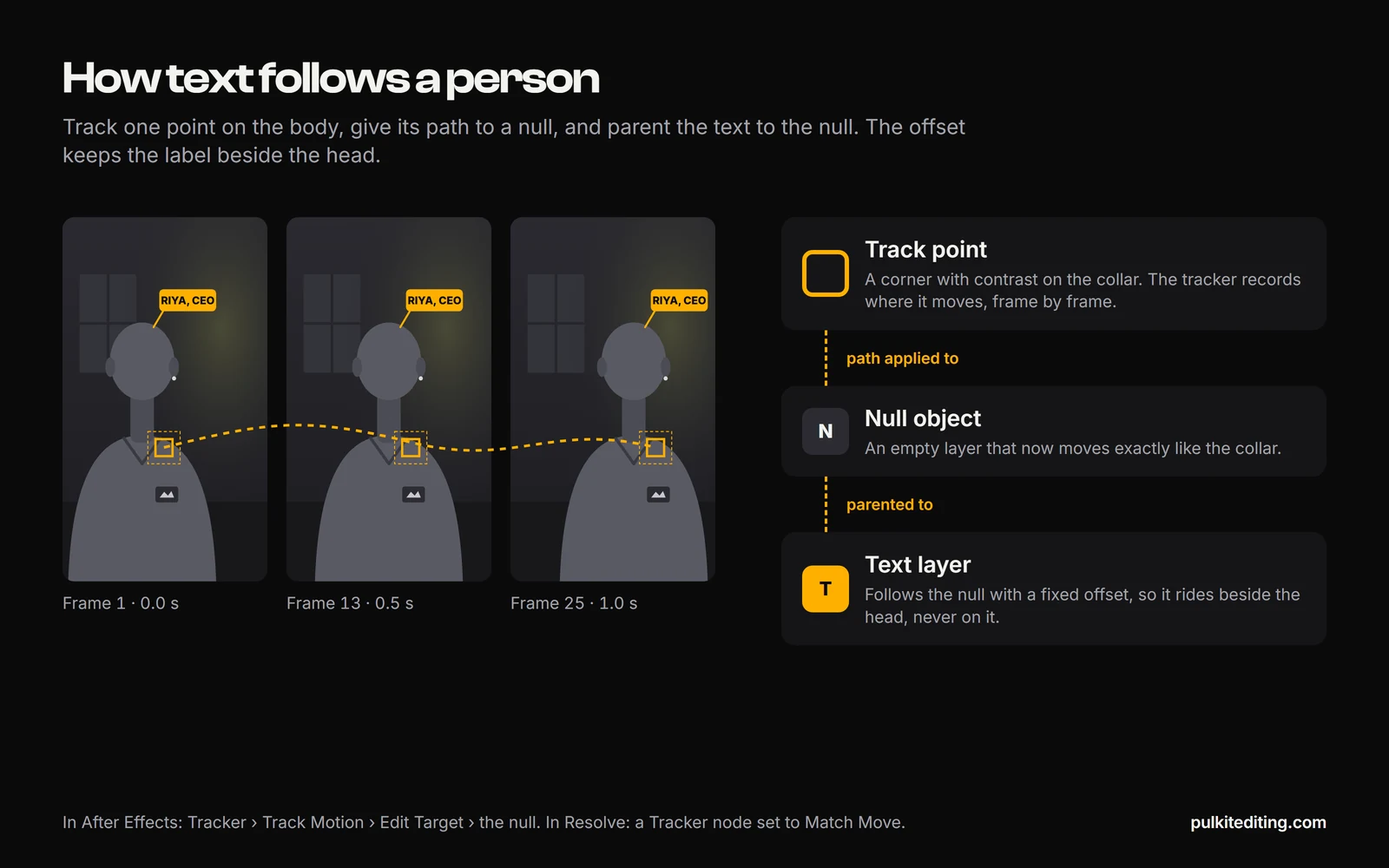
A tracker watches a small patch of pixels, frame by frame, and records where it moves. You then hand that movement to something else, such as a text layer, so it follows. In practice you track the person, apply the movement to an empty "null" layer, and parent the text to the null. That way you can still move, scale and animate the text freely while it rides along with the person.
In After Effects
- Select the footage layer and open Window > Tracker. Click Track Motion. A track point appears: an inner box (the feature) and an outer box (the search area).
- Drag the track point onto something with contrast and a corner: a collar edge, a button, a logo on a T-shirt, an earring. Make the inner box just big enough to hold that feature, and the outer box big enough to cover how far it moves between two frames.
- Click Analyze Forward. Watch it run; if the box slides off the feature, stop, go back a frame, move the box back and continue.
- Create a null (Layer > New > Null Object). In the Tracker panel, click Edit Target, choose the null, and click Apply with X and Y.
- Parent the text layer to the null with the pick whip, then move the text to where it should sit, beside the head or under the shoulder. It keeps that offset as the person moves.
- If the person walks towards the camera, tick Scale before analysing; a second track point then measures the change in size.
For text that should stick to a flat surface the person holds or stands near, like a phone screen, a wall or a table, After Effects also comes with Mocha AE, a planar tracker that follows whole surfaces instead of single points.
In DaVinci Resolve (free)
- Select the clip and open the Fusion page.
- Add a Tracker node (Shift + Space, then type "tracker") between MediaIn and MediaOut.
- In the viewer, drag the tracker's box onto a high-contrast feature on the person and track forward.
- Add a Text+ node and connect it to the tracker as the foreground. In the Tracker's Operation tab, choose Match Move. The text now follows the point.
- Move the text off the point to where it should sit, then go back to the Edit page.
The classic point tracker works in the free version. Resolve's newer AI tracking modes are worth trying in Studio, but you don't need them for a label that follows a person.
In Premiere Pro
Premiere has no tracker you can attach a title to. Its Object Mask in version 26 tracks a person beautifully, but the mask controls what is visible on that clip; a text layer can't ride on it. An answer on Adobe's community forum to exactly this question says the same. Three ways around it:
- For slow movement, keyframe the text's Position (and Scale) by hand every 5 to 10 frames, then add frames where it drifts.
- For real tracking, right-click the clip, choose Replace With After Effects Composition, and track it in After Effects. The result stays linked in your Premiere timeline.
- Third-party plugins exist that turn Object Mask tracks into keyframes. I keep my projects plugin-free for clients, so I use After Effects.
On your phone
- CapCut has a Tracking button for text and stickers, but it has been blocked in India since July 2020.
- Edits added keyframes in 2025. Set a keyframe where the text starts, move to where the person has moved, drag the text into place, and Edits fills in the motion between. Every 10 to 15 frames is usually enough for a talking head.
- VN has keyframes too, and the same method works.
If your phone app has an automatic tracking button, use it, then check the result frame by frame before you trust it.
How to pick a point that tracks
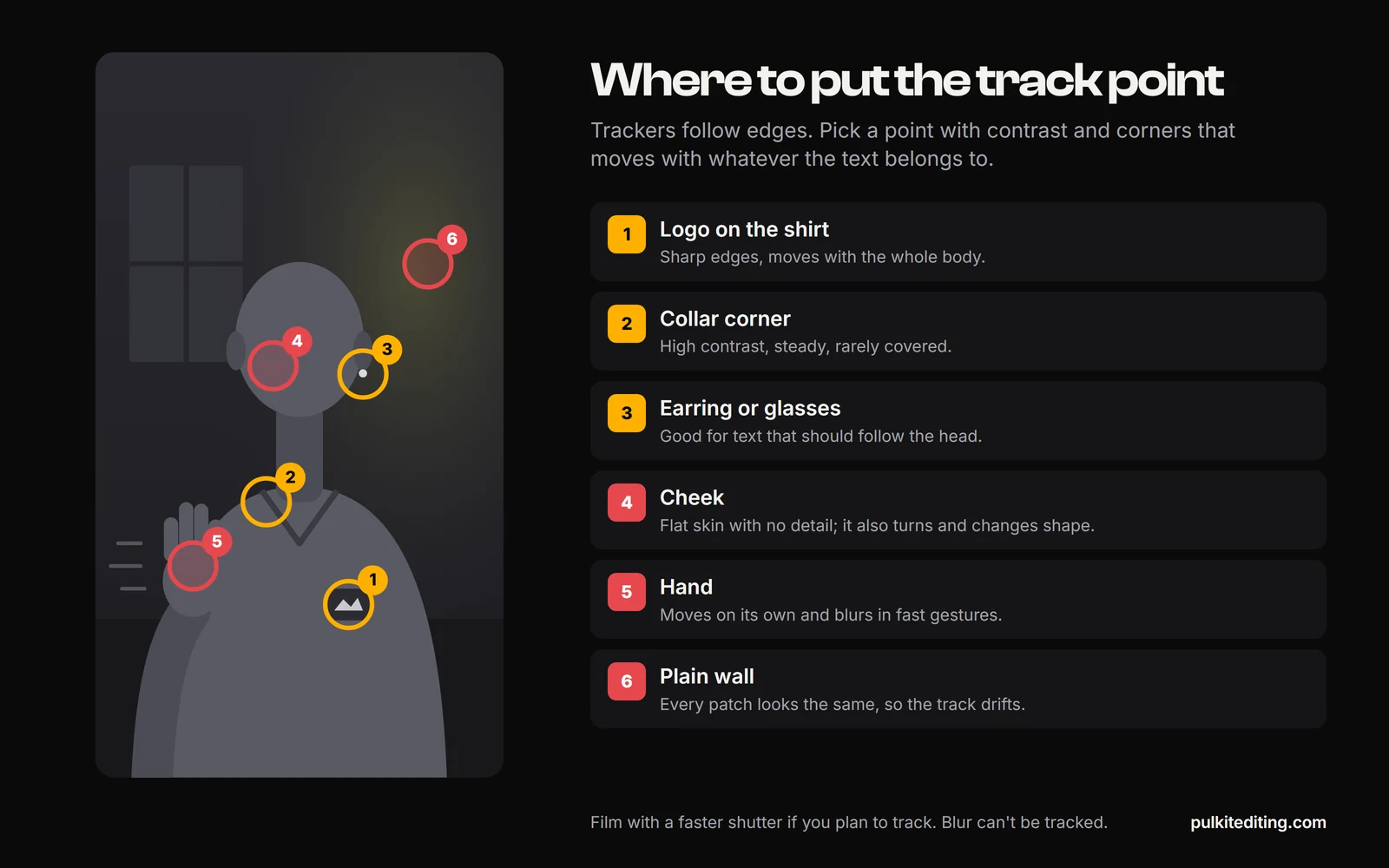
- Contrast and corners. Trackers follow edges. A logo, a collar corner or a button tracks; a plain cheek or a smooth wall doesn't, because every patch of it looks the same.
- The same motion as the text. If the label belongs to the person, track the chest or shoulders, which move with the whole body. Hands and faces move on their own: hands wave, faces turn and blink.
- No motion blur. A blurred feature can't be found again on the next frame. Film with a faster shutter if you plan to track, and avoid tracking through a whip pan.
- Nothing passing in front. If a hand crosses the point halfway through, the track jumps. Pick a point the hands don't reach, or track in two parts.
Make tracked text look right
- Offset it. Text that sits on the tracked point ends up on the person. Keep it beside the head or below the shoulders, and never let it cross the face.
- Smooth the jitter. Small tracking errors show as a buzz. In After Effects, select the null's position keyframes and use Window > Smoother on them; in Resolve, smooth the tracker's path.
- Let it lag a touch. A label that follows two or three frames behind the person feels attached by a string rather than glued to the screen, which reads as more physical. Use it on labels, not on captions.
- Keep one camera. If you push in on the person, scale the tracked text with the same move. Graphics that ignore a zoom look pasted on.
- Stay clear of the app's buttons. Tracked text drifts, so check its whole path against the measured Reels safe zone, from the first frame to the last.
When not to track
A talking head who barely moves doesn't need tracking. Captions should stay still, low in the frame, where the eye expects them; tracked captions wobble and are harder to read. I track labels, arrows, name tags and objects that point at something, and I leave reading text steady.
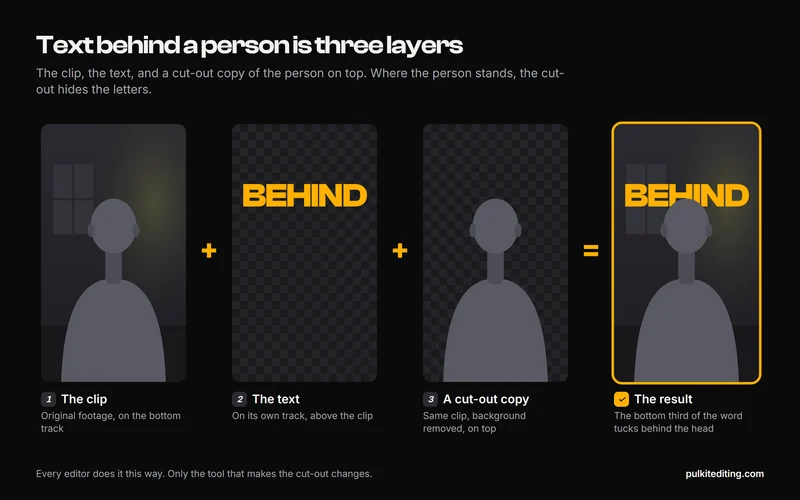
If you want the word to sit behind the person as well as follow them, combine this with the cut-out method in how to put text behind a person: track the text, then put the cut-out copy on top.
Questions people ask
Can Premiere Pro make text follow a person?
Not directly. Premiere 26's Object Mask tracks a person, but the mask only controls what is visible on that clip, and a title can't be attached to it. Keyframe the text by hand for slow moves, or send the clip to After Effects with Replace With After Effects Composition and track it there.
What is the difference between motion tracking and mask tracking?
Motion tracking records how a point moves so another layer, such as text or a graphic, can follow it. Mask tracking moves a mask so an effect or a cut-out stays on a subject. Text that follows a person needs motion tracking.
Why does my motion track slip?
Usually the point has too little contrast, gets blurred by fast movement, or is covered by a hand for a few frames. Pick a corner with contrast that moves with the body, film with a faster shutter, and re-track the frames where it slips.
Can I track text on my phone in India?
CapCut's tracking is blocked in India along with the app. In Edits and VN, keyframe the text's position every 10 to 15 frames, which is enough for a talking head; for fast movement, use After Effects or DaVinci Resolve on a computer.
What is planar tracking?
Tracking a whole flat surface, like a phone screen, a wall or a table, instead of a single point, so text can stick to it at the right angle. After Effects includes Mocha AE for this.
Sources
- Tracking and stabilizing motion in After Effects, Adobe Help Center
- Fusion tracking in DaVinci Resolve, DaVinci Resolve Club
- Text layer follow Object Masking tool path, Adobe Community
- Rebranded Adobe Premiere 26 arrives with one-click object tracking, PetaPixel, January 2026
- Instagram adds new features to Edits, including keyframes, Social Media Today
- Xiaomi Browser, ByteDance’s CapCut among 47 Chinese apps banned by India, Inc42, July 2020